Spring 2026 Product Updates
Spring 2026 at HelpDocs: Improve with AI gives your articles a structured review, bulk translation handles a dozen languages at once, plus QR codes and more.


Say hello to our new updates look: A seasonal look at what we shipped, why we built it, and how to get started.
Improve with AI
What it is. Open any article, hit Improve, and get a structured review back. A score, a summary of what's working and what isn't, and suggestions grouped by category with severity badges. Every suggestion points to the exact paragraph it's about, and you preview each change before it touches your article.
Why we built it. Ever get the feeling like your help article could be better, but you're not really sure how? This is why we built AI, because as much as we live and breathe knowledge bases, we're also not entirely sure how to improve our own articles sometimes.
How to get started. You'll need to be on the Bloom plan, and your admin will need to enable the Improve with AI feature from the AI feature dropdown first.
Then, just make sure you've saved your latest changes, then click the ✨ Improve button next to the Readability panel in the editor. You can also take a look at our interactive walkthrough below 👇
Bulk machine translation
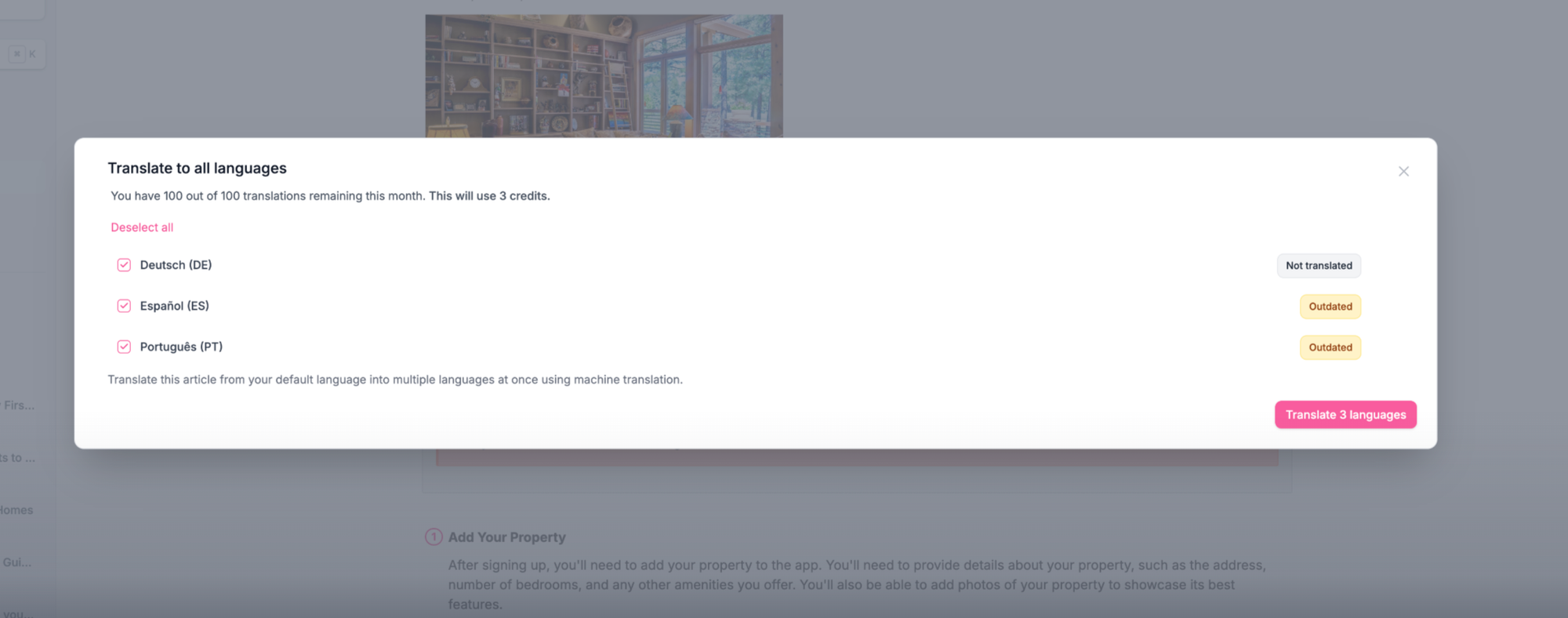
What it is. Open any article, pick the languages you want, and we'll create translated versions for each one in the background. You stay on the page and carry on with your day.
Why we built it. Reaching readers in their own language is one of the highest-ROI things you can do for a knowledge base, and also one of the most tedious. Open the article. Copy. Translate. Paste. Repeat for every language you support. Then do it all again next week when something changes. Nobody was going to keep doing that forever, so we stopped asking you to.
How to get started. Open any article, click the language switcher, and choose Bulk translate. Pick your languages, hit go, and we'll handle the rest. It works one article at a time on purpose, so you can start with your most-viewed docs and add languages as you learn where your readers actually are. Walkthrough below 👇
More V5 template controls
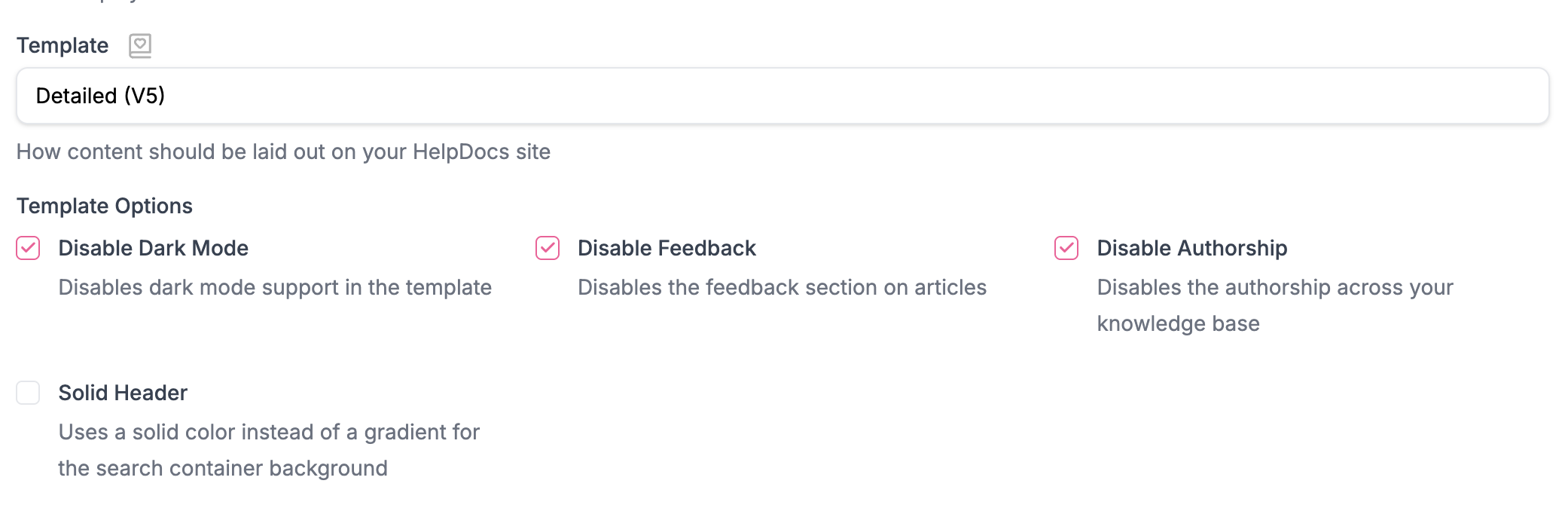
What it is. Three new toggles in your V5 template settings, so your knowledge base can look exactly the way you want it to. Turn off the feedback faces at the bottom of articles, hide author bylines for a cleaner layout, or swap the gradient homepage header for something solid.
Why we built it. Dark mode was the warm-up. Once it shipped, customers started asking about the other parts of the template they couldn't quite bend to fit their brand. The feedback widget that wasn't their style, the bylines they didn't want, the gradient that was lovely but a bit much. Each one was a small ask on its own, so we did them as a batch.
How to get started. Head to Brand → V5 template settings and flip whichever switches you like. They're independent, so you can mute the feedback faces without ghosting the bylines, or go solid on the homepage while keeping everything else gradient-and-friendly. Dark mode is still hanging out there too 🌜
QR codes for any article
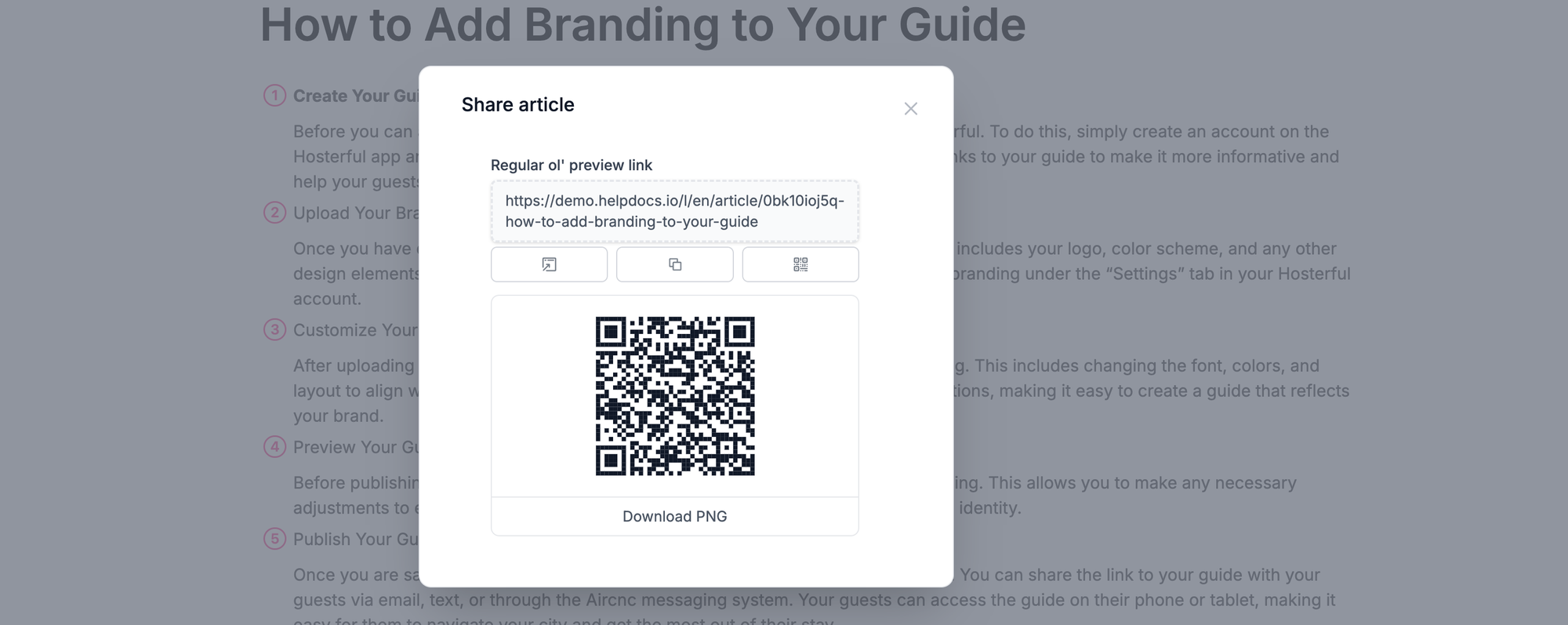
What it is. A new option in the share sheet on any article: generate a QR code that points to the doc. Download it, slap it on whatever needs slapping.
Why we built it. Knowledge bases live online, but a surprising number of your readers are standing in front of something physical when they need help. A piece of equipment, a product on a shelf, a sign at an event. Asking them to type a URL into their phone is asking them to give up. A QR code closes that gap.
How to get started. Open any article, hit Share, and you'll see a QR code button option alongside the usual link and embed choices. Click on it to view the PNG and you're set.
Smaller improvements
The bits and pieces. None of them announced themselves, but they all make your workday a bit less annoying.
- Error messages that actually mean something. We went through and rewrote the ones that were giving you "Error: undefined" energy. Now they tell you what went wrong and, where possible, what to do about it. Revolutionary, we know.
- Drag-and-drop nav reordering. You can now rearrange nav items in Settings → Brand by dragging them around. Previously you had to delete and re-add things in the right order, which was a fun party trick the first time and tedious every other time.
- Recently deleted articles now show up in secondary languages. They were always there in your primary language, mysteriously vanishing in every other. Now they're loved.
- A heads-up before you delete an untitled article that has translations. If the article has no title but does have translated versions, we'll now ask before nuking the lot. Saves the "wait, where did the French version go??" Slack message.
- Paste an image, get it uploaded. Pasting an image into the editor now uploads it to cloud storage automatically. No more "save image → upload image → insert image" three-step shuffle.